Connection guide
Never paste credentials into an assistant conversation.
Connect an email account, add MailMan to a supported AI assistant, then ask it to find, organize or prepare email work.
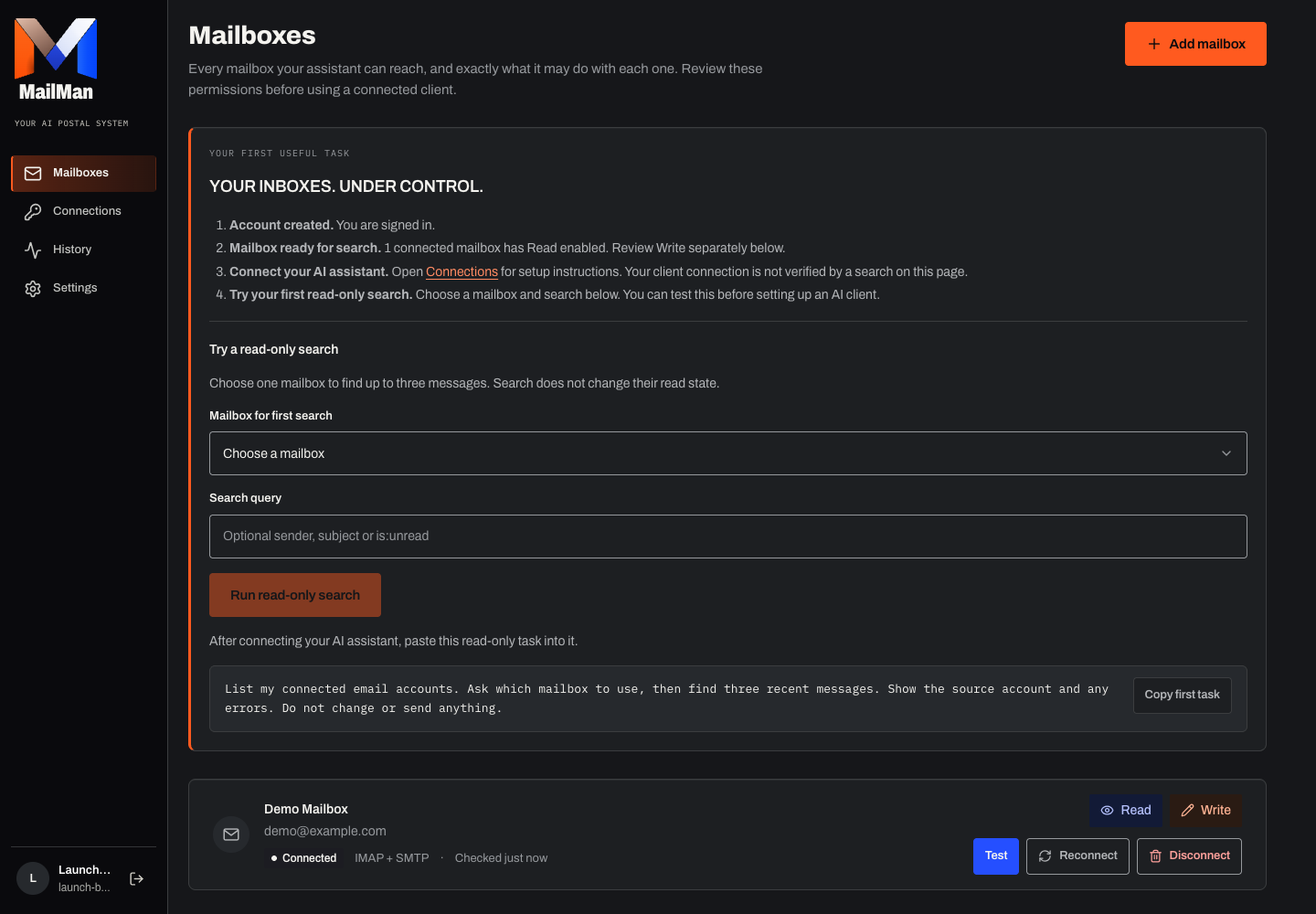
Sign in with your existing account, or create an account when signup is open.
Open Mailboxes and Add mailbox. Choose a provider; review the exact access it requests.
On return, inspect Read and Write. Use Test to check this connection.
Open Connections in the application. Use the displayed MCP address and compatible OAuth or personal-token setup. Keep your working Swipe endpoint unchanged.
Never paste credentials into an assistant conversation.
List my connected mailboxes. Ask which accounts to include, then find recent unread messages in those accounts. Summarize what needs attention and show the source mailbox. Report any account errors. Do not change or send anything.Use the CLI plan and digest for supported reviewed cleanup. General tools rely on account permissions and client controls; not every action has a separate approval screen.
Your existing Gmail, Microsoft or IMAP mailbox stays with its provider. MailMan gives your permitted AI client access to supported operations.
You need a compatible AI client. That client's subscription and your email provider fees are separate. Claude Code has a verified personal-token account-listing and Gmail-search check; see the connection guide for its scope.
No. A write-enabled client can invoke permitted tools; client confirmation varies. Exact digest approval applies to the reviewed CLI routine workflow, not every send or modification.
Reading and marking read are separate tool operations. Live unread-invariance checks for each provider remain part of launch acceptance; do not assume a client will avoid other tools.
There is no hosted scheduler. Prepare a definition, create a fresh CLI plan and review it each time. Client scheduling is not advertised as verified.

Start with a free account and one read-only search. Existing accounts keep their connection.